Managing VM import processes? We’ve been there. Whether you’re migrating workloads, consolidating infrastructure, or preparing for platform changes, understanding VM import and export is essential. We’ve put together this blog to explain what goes into the process and key things you should consider before getting started.
Defining VM Import and Export
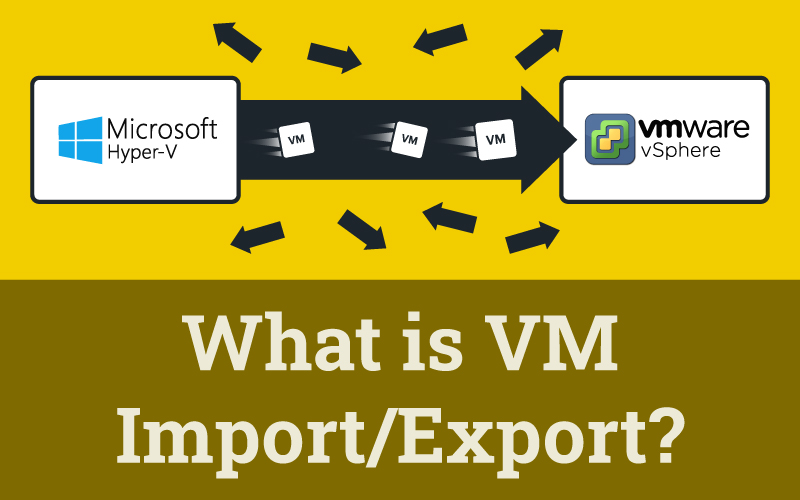
VM import and export enable the movement of virtual machines between virtualization platforms or environments.
VM Export
Packages a VM into a portable format that can be transferred. This includes the VM’s configuration files, virtual disk data, and associated metadata.
VM Import
Takes that packaged VM and integrates it into a new virtualization environment, reconstructing the virtual machine so it can run on the target platform.
Together, these processes enable workload portability across different hypervisors and infrastructure configurations.
How VM Import/Export Works Technically
At its core, VM import/export moves virtual machines as virtual hard disk files. These files contain everything needed to recreate the VM in a new environment.
The most common formats you’ll encounter include:
VMDK (Virtual Machine Disk) is VMware’s file format for virtual hard disk drives. Initially developed by VMware for its virtual appliance products, VMDK became an open format in 2011. It’s used throughout VMware vSphere environments, including ESXi, Workstation, and Fusion.
VHD/VHDX comes from Microsoft Hyper-V. VHD is the older format, while VHDX is an improved version that offers larger disk sizes.
OVA (Open Virtualization Archive) packages VMs into a single archive file in TAR format. It contains the files that make up an OVF package. OVA is platform-agnostic and widely supported across VMware, Microsoft, and other hypervisors.
These formats enable portability between on-premises infrastructure and cloud environments. You can export VMs from VMware vSphere or Hyper-V and import them to different platforms, or move workloads in the opposite direction.
This flexibility matters when you’re managing distributed infrastructure or planning migrations between environments. This has become increasingly common thanks to Broadcom’s licensing changes.
What Gets Transferred During VM Import/Export?
The entire VM image, including its operating system, applications, configuration, and data, is transferred. This is typically done by transferring a virtual disk file (like VMDK, VHD, or OVA mentioned above) to a new hypervisor to create a ready-to-use instance. The entire VM image includes:
- Virtual machine configuration files define how the VM operates. This includes CPU allocation, memory settings, network adapters, and boot parameters.
- Virtual disk files contain the actual data stored on the VM’s virtual drives, including the operating system, applications, and user data.
- Network and storage configurations specify how the VM connects to networks and accesses storage resources.
- Resource allocations determine CPU cores, memory limits, and other performance parameters.
The ultimate goal of VM import is to maintain workload integrity. When properly executed, the imported VM should function identically to how it performed in the source environment. VM import functionality should be simple, flexible, and fast.
The VM Import Process
VM import typically follows a structured workflow. For VMware vSphere environments, the first step is connecting to vCenter or ESXi hosts. You’ll then select which VMs to import. You might choose to migrate in phases, starting with non-critical workloads, before moving production systems.
The next step is compatibility validation. This checks for potential boot issues, driver incompatibilities, or unsupported features before the migration starts. Then, data transfer moves the VM configuration and virtual disk data over the network. Transfer speed depends on network bandwidth, disk size, and whether the VM needs to remain powered on during migration. The post-import validation confirms the VM imported correctly and can boot successfully in the new environment.
Technical Considerations for VM Import
Several technical factors affect VM import success. Generally, if your chosen vendor has a tried-and-tested method for self-managing the VM import process, then it should be pretty straightforward! But here are a few things it doesn’t hurt to consider.
Network Bandwidth
This directly impacts transfer times. Large virtual disks moving over a limited bandwidth can take hours. Planning migrations during maintenance windows or low-traffic periods minimizes disruption.
Storage Compatibility
Matters when virtual disk formats differ between source and target platforms. Some import tools handle format conversion automatically; others require manual intervention.
Driver Compatibility
Driver compatibility affects whether imported VMs will boot successfully. Virtual hardware differences between platforms may require driver updates or configuration changes.
Downtime Requirements
Some VM import methods require VMs to be powered off; others support live migration with minimal interruption.
Scale
For enterprises with distributed infrastructure across remote sites, scalability matters. The ability to run multiple concurrent import operations determines how quickly you can complete large-scale migrations. Manual VM import works for small environments. It breaks down at scale. Consider an organization with 200 remote locations, each running multiple VMs. Manually importing workloads site by site isn’t practical. You might need automation.
StorMagic VM Import – A Solution That Scales
The StorMagic VM import is specifically for organizations migrating VMware vSphere workloads to SvHCI infrastructure.
The utility operates as a standalone, CLI-based tool. It requires only Python and network connectivity, eliminating the need for dedicated migration infrastructure. You can initiate imports from any network-accessible system. For environments with a large number of clusters, StorMagic Technical Services can assist with scripting the VM migration for ease.
Find out more about our VM import feature in our latest whitepaper. Or see it in action, watch our on-demand webinar.